Using the site.
You can use fdroid-store as a consumer (browse and download apps), or as a maintainer (publish your own apps). Both paths share the same account.
01Signing up
Three flavours, depending on how the instance is configured:
- Open signup. Click Sign up, pick an email + password. You're in.
- Invite-only. Paste the invite code an admin sent you. Bound invites only work for the email the admin entered.
- SSO / OIDC. One button — your identity provider does the rest. If the instance allows auto-create, you land on a fresh account immediately; otherwise an admin has to approve.
What's a "username"?
The display name shown on your public profile at /u/<username>. Set it on the first visit to /account — until you do, the profile page shows your email's local part.
02Your account
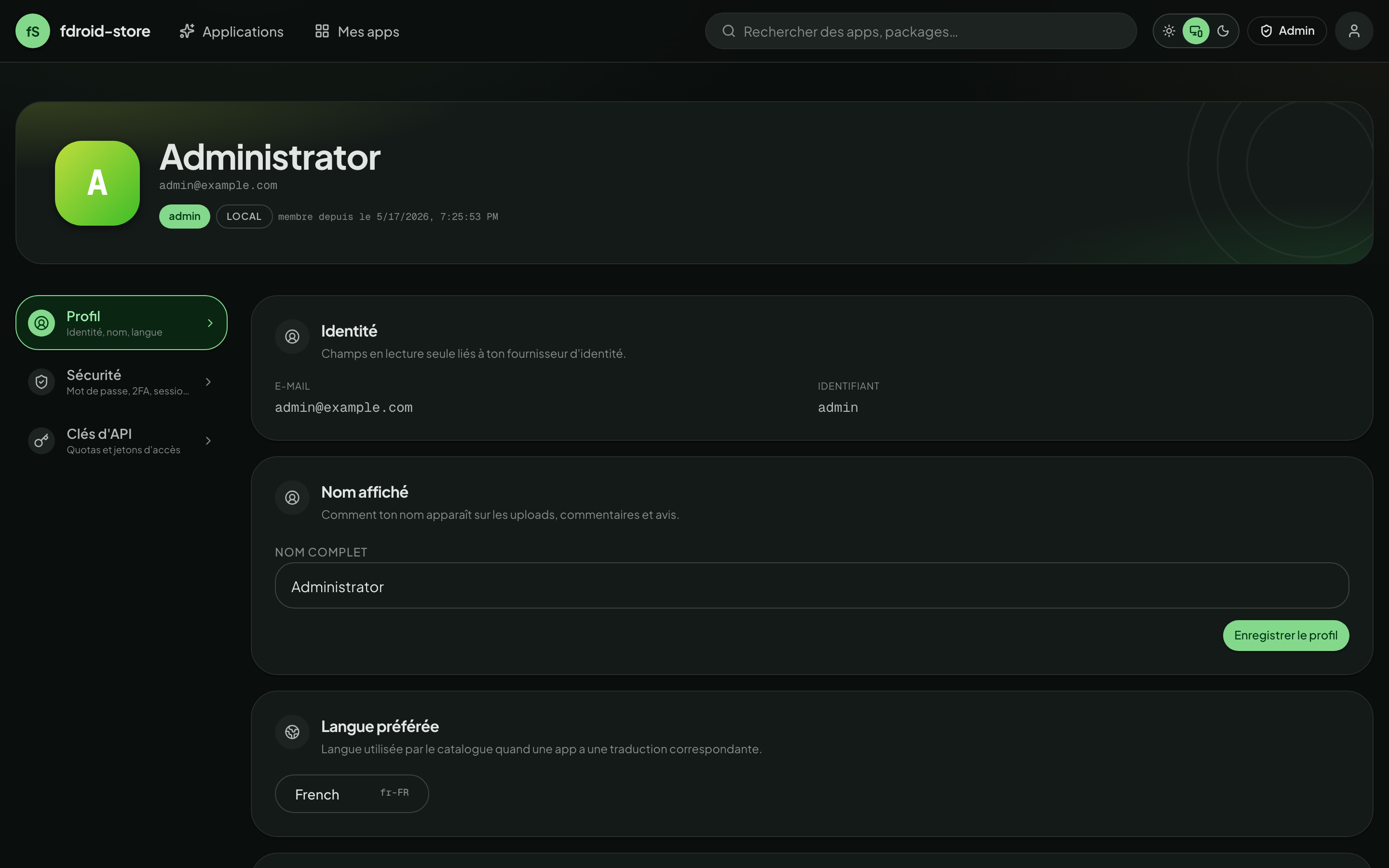
/account is the central control panel for everything attached to your user. The page is split into four cards:
- Profile — display name, avatar, language, dark/light theme.
- Security — change password, enrol TOTP, see & revoke sessions.
- API keys — manage personal F-Droid API keys.
- Quotas — how much storage you're using vs. your allowance.
03Two-factor (TOTP)
Optional unless an admin made it mandatory. Enrolment takes a minute:
-
Open the enrolment panel
Account → Security → Enable TOTP. The page shows a QR code, plus the secret in text form for entry by hand. -
Scan with an authenticator app
Aegis, Bitwarden, 1Password, Google Authenticator — anything that speaks RFC 6238.
-
Confirm with a code
Type the current 6-digit code. We won't enable the second factor until we've seen one work — that's the only way to know your app captured the secret correctly.
-
Save your recovery code
Shown once. Store it in your password manager. If you lose the authenticator, this is the only way back in short of an admin reset.
If you lose the authenticator and the recovery code, your only path is an admin reset of your account (with all sessions revoked). Don't skip step 4.
04Passkeys
A passkey is a FIDO2 credential bound to a single origin (this site) and a single device or roaming key. It replaces the password on sign-in, or stands as a second factor on top of it — your choice on the login page once you've enrolled.
What works as a passkey
- Platform authenticators — Touch ID on macOS / iOS, Windows Hello, Android biometrics, Linux laptops with the fingerprint reader wired up.
- Roaming security keys — YubiKey 5 series, Solo 2, Token2, Nitrokey 3, any FIDO2 USB / NFC key.
- Password-manager-synced passkeys — Bitwarden, 1Password, Apple Keychain, Google Password Manager. They roam across your devices automatically.
Enrolling
-
Open the passkey panel
Account → Security → Passkeys → Add a passkey. Name it ("MacBook · Touch ID", "Phone · Bitwarden", "YubiKey 5C") — labels are for your eyes only and help when revoking. -
Confirm with your authenticator
The browser hands the registration challenge to the OS. Authorise it the way you usually do — fingerprint, PIN, security key tap. No secret ever leaves your device; only the public key is stored.
-
Use it on the next sign-in
The login page now shows a Sign in with a passkey button alongside the password form. Tap, authorise, you're in.
If your admin flipped the require passkey for admins or for uploaders toggle, the next time you sign in you'll be sent through a forced-enrolment screen before any session is minted. You can keep the password for the role you don't fall under, but the gated role can't use it alone anymore.
If you lose the device, the Passkeys list lets you revoke that credential. Enrol at least two (e.g. a phone + a hardware key) so losing one doesn't lock you out — there's no recovery code for passkeys.
05API keys
Personal API keys do two things:
- Authenticate the F-Droid Android client for private apps (HTTP Basic auth, see integrations).
- Authenticate scripts that hit the REST API as you.
Minting one
Account → API keys → New key. Name it ("phone", "ci-laptop"). On creation, you see the secret exactly once in a modal — copy it now or lose it.
Format
Keys look like fdr_<prefix>_<secret>. The prefix is searchable in the DB (admins can spot rogue keys); the secret is hashed (SHA-256) and never recoverable. If you lost it, mint a new one and revoke the old.
Use as Basic-auth
The Android F-Droid client supports the username:password form in the repo URL. Use any username (the system ignores it) and put the full key as the password:
https://anyuser:fdr_9a4b...3c12_8K3p...vQ9L@apks.example.com/fdroid/repo
06Sessions
Every browser login + every refresh-token rotation lives as a row under Account → Sessions. You see:
- Device and user-agent hint (Chrome on macOS, etc.).
- IP address & rough location.
- Last activity timestamp.
- Revoke button — kills that one session immediately.
- Revoke all — kills every session except the current one. Used after a stolen-laptop scare.
Refresh tokens rotate on use: every time the SPA exchanges a refresh token for a new pair, the old jti is marked consumed. A leaked refresh token used a second time fails — and we know about it.
07Browsing & downloads
The public landing for everyone — logged in or out — is /apps. Each card shows the icon, title, suggested-version label, category chips, and an at-a-glance "open in F-Droid" link.
Search & filter
The rail on the left filters by category and visibility (everyone-visible vs. apps you have access to). The search box matches package name and display name.
App detail
Click an app and you'll see:
- Hero with icon, feature graphic, description, and category chips.
- Per-version history with versionCode, versionName, size, target SDK, signing-cert SHA-256, and the source link (when known).
- A Download button per version. For private apps you'll be asked to authenticate.
Download history
/history shows the last few hundred downloads you triggered while logged in. Useful when you forgot which version you grabbed yesterday.
08Creating an app
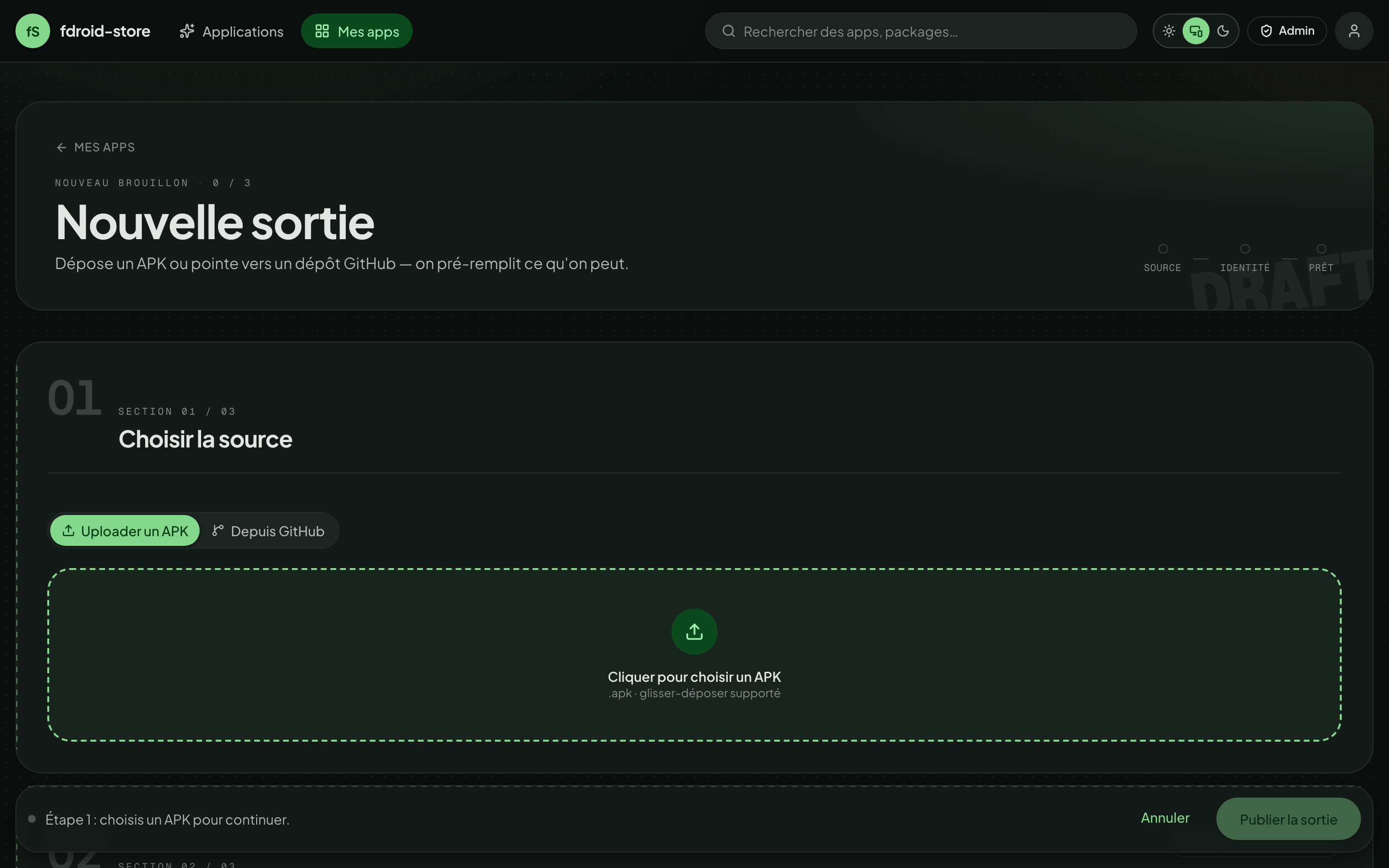
Four entry points, all reachable from My apps → New app:
A · Manual
Type the package name + title, pick a category, set visibility (public / private), drag a screenshot if you have one. You'll attach the first APK on the next screen.
B · From a forge release
Paste a GitHub / GitLab / Gitea repo URL. The wizard fetches the latest release, picks the first .apk asset (or one matching your glob), parses the manifest, and pre-fills the app fields. Once accepted, the worker subscribes to the source and re-fetches on a cron.
C · From a source proxy
For sources that aren't a Git forge (an F-Droid mirror, Patreon, your internal artefact registry), pick the Depuis un proxy tab. Choose one of the proxies your admin has registered, pick a provider from its catalogue, paste the upstream URL, and click Valider la source. fdroid-store resolves through the proxy server-side and shows you the parsed package + version + size before you create the app. See Integrations → Source proxies for the full flow including OAuth.
D · Paste fdroiddata metadata
If you're migrating an app that already lives in the upstream fdroiddata repo, paste its YAML. The parser fills out fields (description, links, categories, anti-features). You still need to attach an APK afterwards.
09Uploading an APK
From an app's detail page, maintainers see an Upload APK drop-zone. Drag a file or click to pick one.
What happens behind the scenes:
- The browser checks the file size against the configured cap before posting — you get an inline error instead of a 30s upload then 413.
- The backend parses the manifest with androguard (package name, versionCode, signing certificate).
- If the cert doesn't match the app's previous one, the upload is refused — that's the F-Droid signing-key continuity guarantee.
- If ClamAV is on, the file is streamed to clamd. A positive verdict refuses the upload.
- The retention cap is enforced: if the cap is N, anything older than the N most-recent versions (by versionCode) is evicted — except the suggested version.
- An admin (or an auto-publish rule on your account) publishes the file. A reindex is queued.
Uploading from a script
The same endpoint accepts a personal API key or a per-app deploy token. See integrations → CI publishing.
The default size cap is 200 MB. Operators can raise it (proxy + backend env), but the F-Droid client downloads everything in one shot — be reasonable.
10Collaborators
The owner of an app can invite co-maintainers. They get most of the same powers:
- Upload APKs
- Yes — co-maintainers can push new versions through the UI or via the deploy token.
- Edit app metadata
- Yes — description, links, screenshots, categories.
- Mint deploy tokens
- Yes — useful for handing CI access to whomever set up the pipeline.
- Edit the forge source
- No — only the owner can. A co-maintainer with a forge PAT shouldn't be able to repoint the source at their own org.
- Transfer / delete the app
- No — owner only.
- Set retention override
- No — admin only.
11Retention & suggested version
Suggested version
The F-Droid client downloads the suggested version, not necessarily the latest one. By default that's "latest", but you can pin a specific version (useful when v2.0 has a regression and you want v1.9 served).
The retention cap, from your seat
If the admin set a repo-wide default of, say, 5 versions per app, any upload past version 6 evicts the oldest one — silently, FIFO. You'll see a small banner on the app page reminding you of the cap.
You can't override the cap upwards. The override field is admin-only and can only ever tighten the default, never widen it. If you need an exception, ask an admin.
The currently-suggested version is never evicted. If you pin v1.9 and the cap is 3, the system keeps v1.9 plus the two newest — even if v1.9 is older than the cutoff.
12Quality signals & export
Three operator-grade tools sit on each APK row in /my-apps/[id], plus one app-level export. They're all visible to the app's owner, its collaborators, and admins.
Reproducible Builds badge
Per-APK flag attesting that the binary you published has been reproduced from source independently — typically by F-Droid's build farm at verification.f-droid.org. Four states:
unknown- Default. No badge on the public page. The owner hasn't told us anything yet.
not_attempted- The owner has declared the build is non-deterministic (signed by a hardware key, NDK ABI choice, etc.). The badge is rendered in a neutral outline — readers know the lack of verification is deliberate.
verified- Green badge. A reference SHA-256 was supplied and matches this APK's bytes exactly.
failed- Red badge. A reference was supplied and didn't match — the public artefact diverges from the upstream build.
Open the side-sheet from Éditer next to the badge on /my-apps/[id]. Two write paths:
- Paste a SHA-256 — typed in or copied from the build report. Auto-decides verified / failed by comparing against the APK.
- Verify from URL — paste a URL (the F-Droid verification server is the canonical one:
https://verification.f-droid.org/<pkg>_<vcode>.apk.json). The backend fetches it through the SSRF guard, extracts every 64-hex SHA-256 it finds, and verifies if any of them match. Useful when the verification doc bundles a local+remote hash pair.
CVE / SBOM panel
When the admin enabled Trivy scanning (see admin §08), every APK gets a CVE row with a status pill and a per-severity count strip. Détails opens a side-sheet with the full CVE table — CVE id, severity, package, installed version, fix version, NVD link. Re-scanner requeues the worker job.
The data is private — only owners / collaborators / admins see it. The public catalogue never exposes CVE counts.
Export metadata.yml
The Exporter YAML button on the app Hero downloads a binary-only F-Droid metadata.yml for the app. Every field the New-App YAML importer reads is also written here, and Builds[] is emitted in F-Droid's binary: shape pointing at this repo's APK URLs — so the file drops straight into an fdroiddata fork without further editing if you want to mirror your app into the official catalogue.
Publish an app on your private repo first, iron out the metadata, then export and PR into fdroiddata when you're ready to ship to the global F-Droid index. No rewriting from scratch.